Key Takeaways
Before we dive in, here are the main points:
- Archiving hides boards from your profile while keeping all your pins safe and intact
- You can unarchive anytime with no time limits or restrictions
- Archiving is not a privacy setting; use a private board for controlled visibility
- Different from deletion which permanently removes content (with only 7-day recovery)
- Works on all devices including desktop, iPhone, and Android
Introduction
Pinterest boards can pile up quickly. Between wedding planning, home projects, seasonal ideas, and old hobbies, your profile can become cluttered with boards you're not actively using. The good news? You don't have to delete them.
Archiving lets you hide boards from your public profile while keeping all your pins safe. Unlike deleting, which permanently removes your content (with only a 7-day recovery window), archiving is completely reversible. You can unarchive any board at any time and pick up right where you left off.
If a board disappeared and you are not sure whether it was archived, deleted, removed, or opened under the wrong account, use our missing Pinterest Pins and boards checklist first.
This guide covers everything you need to know about archiving and unarchiving Pinterest boards on desktop, iPhone, and Android—plus when to archive versus delete.
What Does It Mean to Archive a Board on Pinterest?
When you archive a board on Pinterest, you're essentially putting it into a hidden storage mode. The board disappears from your public profile but remains fully intact in your account. Archiving is not the same as changing the board’s privacy setting.
The Pinterest archive feature is perfect for boards you want to keep but don't need visible right now. Unlike deletion, archiving is completely reversible—you can restore any archived Pinterest board whenever you want.
What Happens When You Archive a Pinterest Board
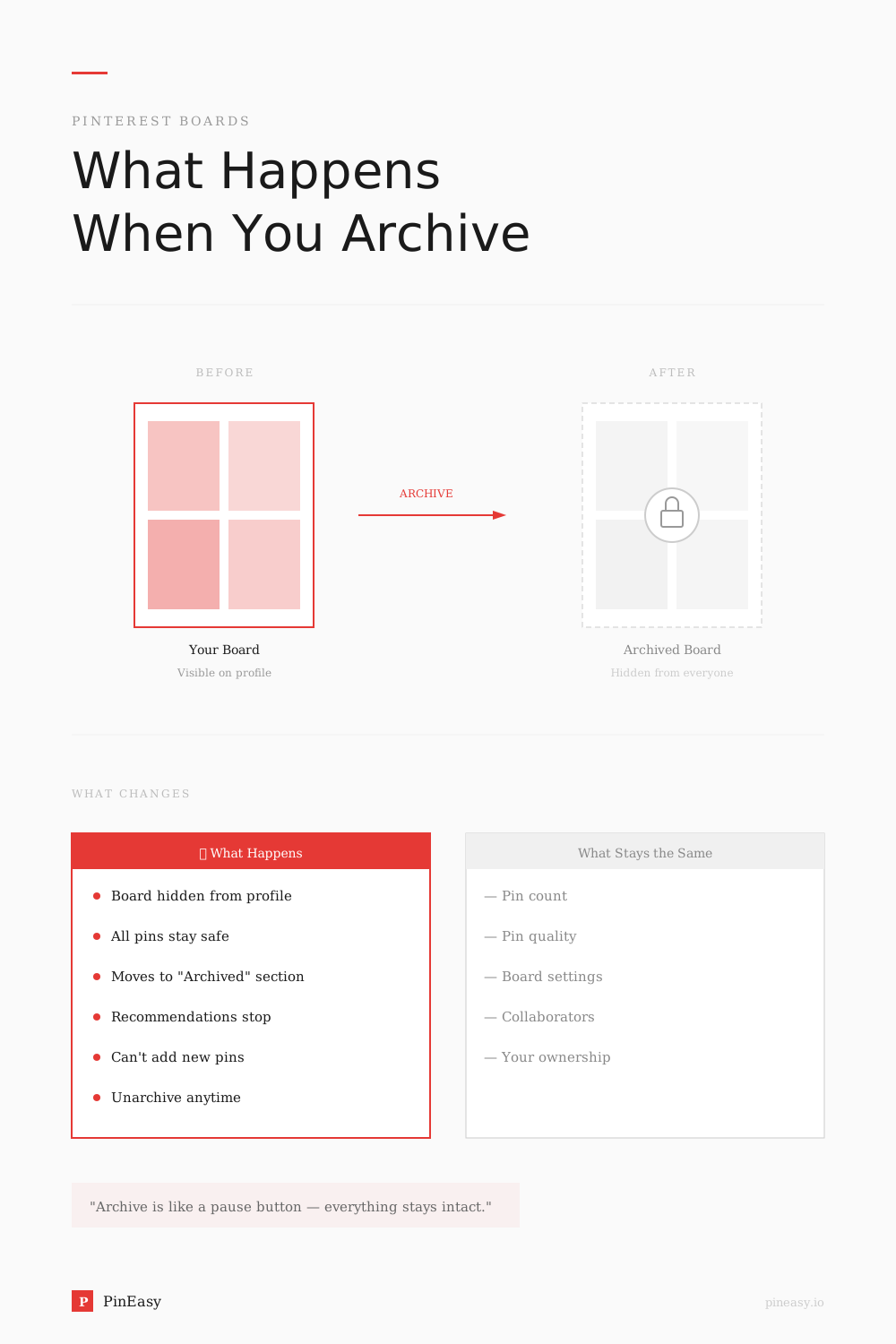
When you archive a board on Pinterest, several things happen:
- The board is hidden from your public profile. Followers and visitors to your profile won't see the archived board listed among your boards.
- All your pins are preserved. Every pin you saved to that board remains intact. Nothing is deleted, moved, or altered.
- The board moves to your Archived section. At the very bottom of your profile, you'll find an "Archived boards" section where all your archived boards live.
- You can't save new pins to it. While archived, the board becomes inactive. You'll need to unarchive it first if you want to add new pins.
- Archiving is distinct from privacy controls. The current archive help page documents removal from the public profile and the inability to save new Pins. It does not promise complete privacy or a particular recommendation outcome.
- You can unarchive anytime. There's no time limit on how long a board can stay archived. Restore it whenever you're ready.
When to Archive Your Pinterest Boards
Archiving makes sense in several situations:
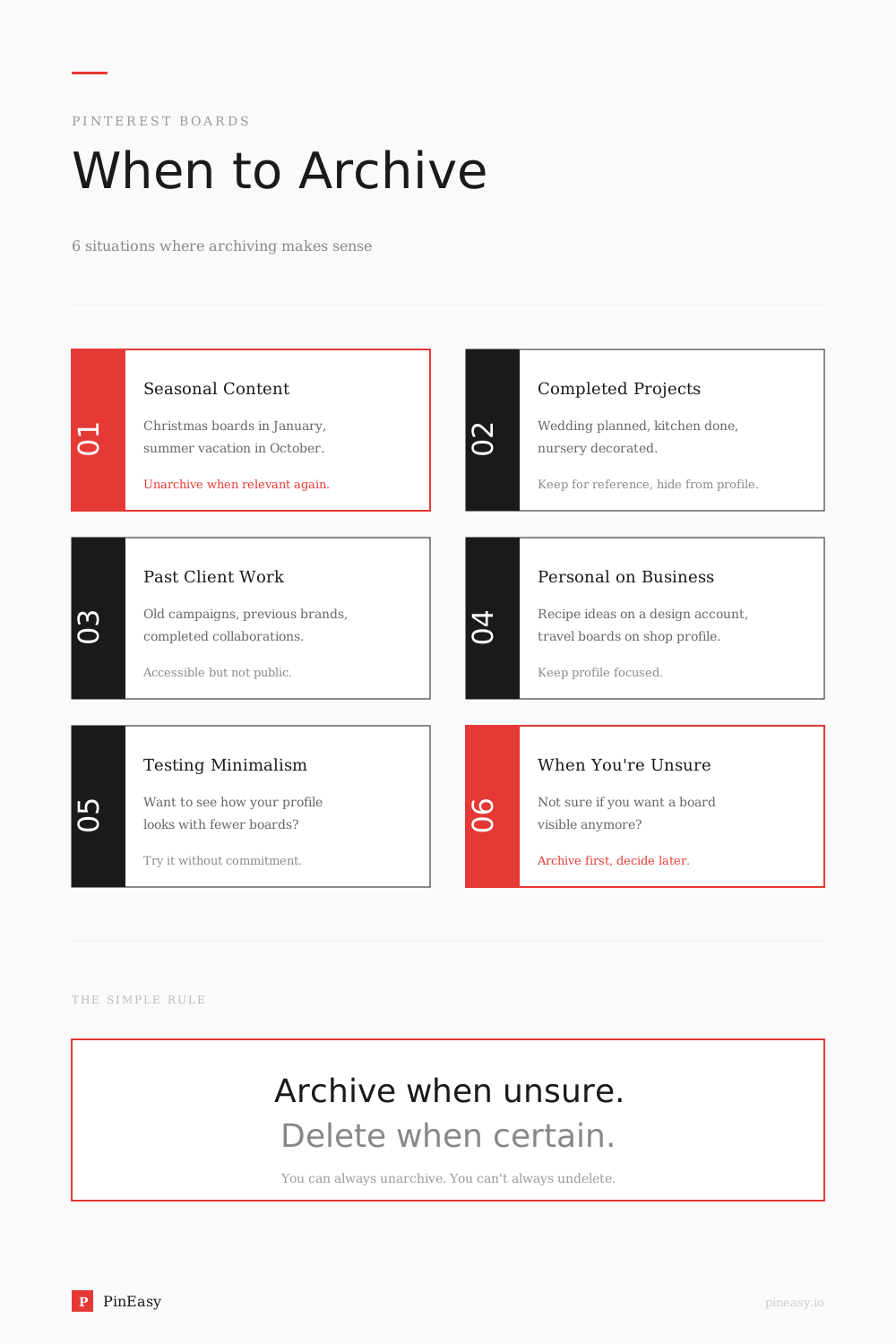
- Seasonal content. Christmas, Halloween, or summer vacation boards don't need to clutter your profile year-round. Archive them in the off-season and unarchive when relevant.
- Completed projects. Finished planning that wedding, nursery, or kitchen renovation? Archive the board to keep your profile tidy.
- Past client work. Business accounts often accumulate boards for past clients or campaigns. Archiving keeps them accessible for reference without appearing on your public profile.
- Personal boards on a business account. If you use Pinterest for business but have some personal boards, archiving keeps your professional profile focused.
- Testing a minimalist aesthetic. Want to see how your profile looks with fewer boards? Archive instead of delete—you can always bring them back.
- Boards you're unsure about. When in doubt, archive. You can always unarchive or delete later.
How to Archive a Board on Pinterest (Desktop)
Follow these steps to archive a board from your computer:
- Log into Pinterest at pinterest.com
- Click the dropdown arrow next to your profile picture in the top-right corner to open your profile
- Click the board you want to archive to open it
- Click the three dots (•••) next to the board name
- Select "Archive" from the dropdown menu
- Click "Archive" again to confirm
Your board will immediately move to the Archived section at the bottom of your profile.
How to Archive a Board on Pinterest (iPhone/iPad)
To archive a board on iOS devices:
- Open the Pinterest app and log into your account
- Tap your profile picture in the bottom-right corner to open your saved tab
- Tap the board you want to archive to open it
- Tap the three dots (•••) in the top-right corner of your screen
- Select "Archive board" from the menu
- Tap "Archive" to confirm
Quick tip: You can also long-press on a board from your profile to access options including archive.
How to Archive a Board on Pinterest (Android)
The process on Android is nearly identical to iOS:
- Open the Pinterest app and log into your account
- Tap your profile picture in the bottom-right corner to open your saved tab
- Tap the board you want to archive to open it
- Tap the three dots (•••) in the top-right corner of your screen
- Select "Archive board" from the menu
- Tap "Archive" to confirm
The board will move to your Archived section immediately.
Can People See Your Archived Boards on Pinterest?
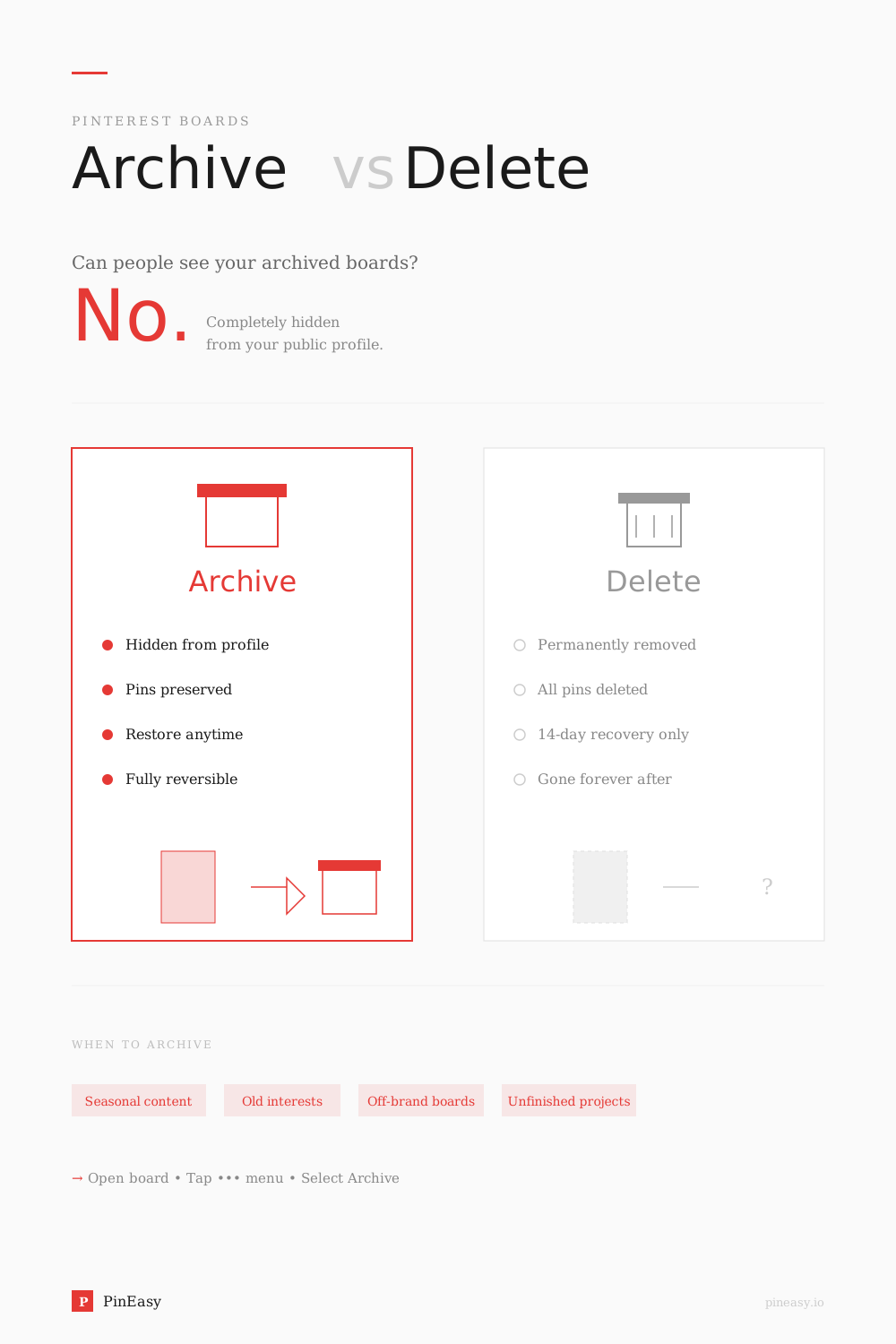
No, not on your public profile. Pinterest says archived boards don't appear on your public profile, and you can't save new Pins to them. You can still find your archived boards at the bottom of your own profile.
There are two important limits to what Pinterest confirms:
- The Pins themselves: Pinterest's archive guidance doesn't say whether individual Pins can still appear in search results or other people's feeds.
- Shared boards: The guidance doesn't explain what collaborators can see or do after a board is archived. See the shared-board section below.
Archiving isn't the same as making a board private. If you need to control who can see a board, use Pinterest's private-board setting, which limits visibility to you and people you invite. Check existing collaborators if you're concerned about access.
For a related privacy question, see whether people can see who viewed their Pinterest profile.
Archiving a Shared (Group) Board
Pinterest doesn't say whether collaborators are notified when you archive a shared board, or whether they can continue saving Pins to it.
In one Reddit discussion, a user reported that collaborators weren't notified and could still save Pins after the owner archived the board. That's one person's experience, not an official Pinterest rule. Don't rely on archiving to remove someone's access or stop them contributing.
Pinterest documents clearer options for managing a group board:
- If you're a collaborator: You can leave the group board.
- If you're the owner: You can change collaborator permissions or remove collaborators from the group board.
- If you want to remove the board entirely: The owner can delete it. Pinterest says deleting a board also deletes its Pins, and the board can be restored within seven days.
Where to Find Archived Boards on Pinterest
Archived boards are easy to find once you know where to look:
- On desktop: Go to your profile and scroll all the way down past your regular boards. You'll see an "Archived boards" section at the very bottom.
- On mobile (iPhone and Android): Tap your profile picture, then scroll down past all your visible boards. The Archived boards section appears at the bottom.
Important: Removal from the public profile is the documented archive behavior. Check the separate privacy setting and collaborator access if visibility is your concern.
How to Unarchive a Pinterest Board
Decided you want a board back on your profile? Here's how to unarchive on each device.
Unarchive on Desktop
- Go to your profile on pinterest.com
- Scroll to the bottom to find the "Archived boards" section
- Click the archived board you want to restore
- Click the three dots (•••) next to the board name
- Select "Unarchive" from the menu
- Click "Unarchive" to confirm
Unarchive on Mobile (iPhone/Android)
- Open the Pinterest app and go to your profile
- Scroll to the bottom to find the Archived section
- Tap the archived board you want to restore
- Tap the three dots (•••) in the top-right corner
- Select "Unarchive" or "Unarchive board"
- Tap "Unarchive" to confirm
Your board is now restored and visible on your profile again. You can start saving new pins to it immediately.
Archive vs. Delete: Quick Comparison
| Feature | Archive | Delete |
|---|---|---|
| Pins preserved? | Yes | No |
| Reversible? | Anytime | 7 days only |
| Hidden from profile? | Yes | Yes (removed) |
| Public profile listing? | Board no longer listed | Board removed |
| Can add new pins? | Not until unarchived | N/A |
| Best for | Temporary hiding | Permanent removal |
Bottom line: Use archive when you're unsure. Use delete only when you're certain you'll never need that content again.
If you already deleted a board by mistake, you can recover a deleted Pinterest board within seven days. Pinterest lists desktop and Android generally, but its business-account note specifies desktop. Use desktop for a business account.
When to Delete Instead of Archive
While archiving is the safer choice in most situations, deletion makes sense when:
- The content is completely outdated. Information that's no longer accurate or relevant might be better removed entirely.
- The board no longer represents your brand. After a significant rebrand, old boards might create confusion if they ever reappeared.
- You'll never reference those pins again. If there's zero chance you'll want that content in the future, deleting frees up mental clutter.
- You're doing a major profile cleanup. Sometimes a fresh start requires letting go of old content.
For detailed instructions on removing boards permanently, see our guide on how to delete a board on Pinterest.
Pro Tips for Pinterest Board Organization
Managing your boards effectively takes ongoing attention. Here are strategies that work:
- Audit your boards quarterly. Set a recurring reminder to review your boards. Archive or delete underperforming ones, and check if any archived boards should come back.
- Use keyword-rich board names. Clear, descriptive names help you find boards later—especially useful for archived content you might search for months down the road. Need inspiration? Check out our Pinterest board names guide for naming examples.
- Archive before major launches. Cleaning up your profile before a product launch, seasonal campaign, or rebrand creates a more focused impression for new visitors.
- Consider private boards as an alternative. They remain active and can be seen by you and invited people. Check collaborator access before saving sensitive material.
- Track your metrics after cleanup. Review Pinterest impressions alongside saves and clicks. A profile cleanup does not establish the cause of any performance change.
- Organize with board sections. Use sections to make a board easier to browse. The reviewed guidance does not establish a fixed SEO traffic share or a ranking boost from sections.
Frequently Asked Questions
Can you archive a Pinterest board?
Yes. Archiving removes the board from your public profile while preserving its Pins. You can find it at the bottom of your own profile and unarchive it at any time. Its privacy setting still applies.
Where are archived boards on Pinterest?
Archived boards appear at the bottom of your profile, below your active boards. Pinterest says they do not appear on your public profile.
How do I unarchive a board on Pinterest mobile?
Go to your profile, scroll to the Archived section at the bottom, tap the board you want to restore, tap the three dots menu, select "Unarchive," then confirm.
Do archived Pinterest boards affect SEO?
Pinterest documents removal from your public profile. Its current archive guidance does not establish a ranking penalty, a search-removal guarantee for every Pin, or a guaranteed recommendation change.
Can people see archived Pinterest boards?
Not on your public profile. Pinterest says archived boards don't appear there. Archiving isn't a privacy setting, though. If you want a board visible only to you and people you invite, make it private.
Are archived boards on Pinterest public?
Archived boards aren't listed on your public profile. Pinterest doesn't describe archiving as a privacy control or guarantee that every Pin disappears from public discovery. Make a board private if you need to restrict who can see it.
If I archive a shared Pinterest board, will the other people know?
Pinterest doesn't document whether archiving a shared board notifies collaborators. It also doesn't confirm whether they can continue saving Pins. One Reddit user reported no notification and continued saving access for collaborators, but that isn't an official guarantee. If you need to control access, review the group's collaborator settings.
Can people still see Pins from an archived Pinterest board?
Pinterest confirms that archiving removes the board from your public profile, but its archive guidance doesn't say whether individual Pins remain visible in search or other people's feeds. Don't assume archiving removes every Pin from public view. If visibility matters, check the board's privacy setting.
Is there a way to hide archived boards on Pinterest?
Archived boards are already hidden from your public profile, but you can still find them at the bottom of your own profile. If you want to restrict access rather than just remove a board from your public profile, use the private-board setting.
Why are my Pinterest boards not showing?
If a board is missing from your public profile, check whether it is archived or private. Archived boards appear at the bottom of your own profile; private boards remain visible to you and invited people. Unarchiving restores an active board but does not change its privacy setting. If you cannot find a board in your own account, check that you are signed in to the correct account and follow Pinterest’s missing boards guidance.
How long can I keep a board archived?
There's no time limit. Boards can stay archived indefinitely, and you can unarchive them whenever you choose.
What's the difference between archived and secret boards?
Archived boards are inactive: you cannot save more Pins until you unarchive them. Private boards remain active and are visible to you and invited people. Archiving and privacy are separate controls.
Board visibility is separate from search activity. If privacy is your concern, see who can see what you search on Pinterest.
Final Thoughts
Archiving gives you flexibility that deleting doesn't. Whether you're seasonally rotating content, cleaning up a business profile, or just tidying your Pinterest aesthetic, archiving keeps your options open.
Remember: archive when you're unsure, delete when you're certain. Your future self will thank you for having that old inspiration board available when you need it.
Ready to streamline your Pinterest workflow? Try PinEasy free and let AI help you create scroll-stopping pins automatically.
Sources
- Pinterest Help Center - Archive or Delete a Board
- Pinterest Help - Private Boards
- Pinterest Help - Leave a group board
- Pinterest Help - Create and manage group boards
- Pinterest Create - The Secret to Creating Standout Boards
Related Articles
- How to Delete a Board on Pinterest — When archiving isn't enough and you need a fresh start
- Pinterest Board Names Guide — Strategic naming for better discoverability